

About the Author – What are security headers and why you need them.
In today’s digital landscape, where security and privacy are paramount, system administrators continually seek ways to prevent breaches and data loss. The concept of a shared responsibility model highlights the division of security tasks between service providers and customers, emphasizing that service providers cannot control individual user behaviors on personal devices. While modern web browsers strive to protect users from malicious threats, they require specific instructions to safeguard against attacks effectively.
This is where security headers come into play. Security headers are crucial tools administrators can use to protect end-users from threats like man-in-the-middle attacks, cross-site scripting (XSS), and other malicious activities. As cyber criminals become increasingly sophisticated, administrators must guide browsers on how to interact with their sites and what actions to disallow. Implementing security headers can significantly enhance end-user protection, ensuring a safer browsing experience.
How to see if my site has security headers configured
Before implementing security headers, it’s essential to determine if your website already has them configured. An excellent tool for this purpose is securityheaders.com. This website allows you to analyze your site’s current security headers and provides a comprehensive report on their status.
To begin, navigate to securityheaders.com and enter your website URL. The tool will scan your site and generate a detailed report, highlighting which security headers are present and which need to be added or improved.
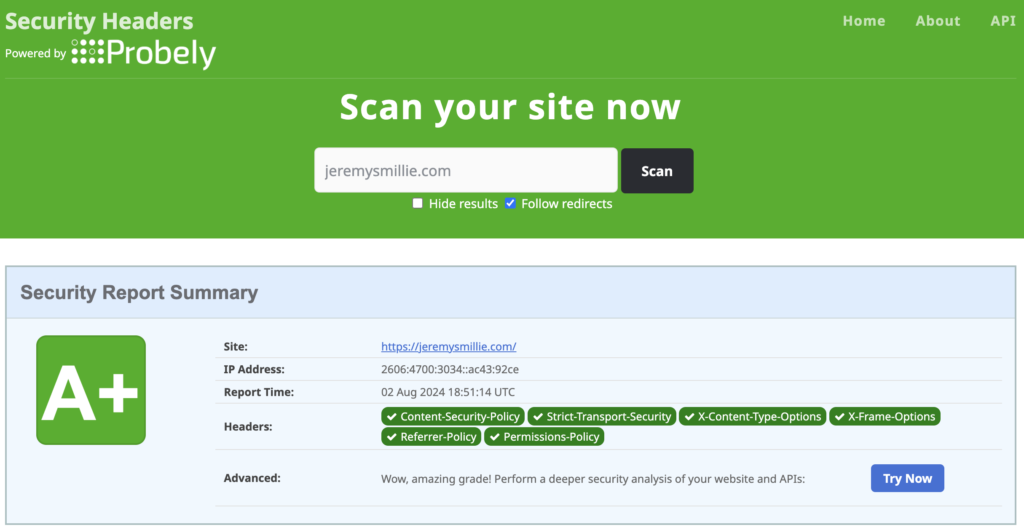
Below is a screenshot of my website’s results, showcasing all the necessary security headers configured correctly. This serves as a benchmark for what a well-secured site should look like.
In the following sections, I will guide you through configuring these security headers for your website, ensuring robust protection against potential threats.
How do I add security headers if they are missing
In this article, I will explain how to configure security headers in two straightforward ways: by modifying the underlying configuration file and through a CDN like Cloudflare. Additionally, I will detail the main security headers and their functions, including Content Security Policy (CSP), Strict Transport Security (HSTS), X-Content-Type-Options, X-Frame-Options, Referrer Policy, and Permissions Policy.
Content Security Policy (CSP)
CSP helps prevent cross-site scripting (XSS) attacks by specifying which content sources are trusted. It allows you to define the sources of content that browsers should be allowed to load on your site.
Acceptable values for this header are:
Strict Transport Security
HTTP Strict Transport Security (HSTS) is a security policy mechanism that helps protect websites against protocol downgrade attacks and cookie hijacking. Instructions to browsers to interact with your site only over HTTPS ensure a secure connection. Here are the most common HSTS settings and their purposes:
X-Content-Type-Options
The X-Content-Type-Options header is used to prevent browsers from MIME-sniffing a response away from the declared content-type. This helps mitigate the risk of drive-by downloads and other MIME-based attacks. Here is the common setting for X-Content-Type-Options and its purpose:
X-Frame-Options
The X-Frame-Options header is used to control whether a browser should be allowed to render a page within a frame, iframe, embed, or object. This helps protect against clickjacking attacks by preventing your web pages from being embedded in potentially malicious sites. Here are the common settings for X-Frame-Options and their purposes:
Referrer Policy
The Referrer-Policy header controls how much referrer information is included with requests made from your site. It helps protect user privacy by limiting the amount of information sent to third-party sites. Here are the most common Referrer Policy settings and their purposes:
Permissions Policy
The Permissions Policy (formerly known as Feature Policy) allows you to control which web platform features can be used in your browser. By specifying the permissions for features like geolocation, camera, microphone, and more, you can enhance the security and privacy of your website. Here are some common Permissions Policy settings and their purposes:
Setting Up Your Security Headers In .htaccess
To configure all of these security headers in your .htaccess file, you can add the necessary directives under the <IfModule mod_headers.c> section. Below is an example of how to set up each security header discussed:
<IfModule mod_headers.c>
    # Content Security Policy (CSP)
    Header always set Content-Security-Policy "default-src 'self'; script-src 'self' 'https://trusted.cdn.com'; style-src 'self' 'https://trusted.cdn.com'; img-src 'self' data:; connect-src 'self' 'https://api.trusted.com'; font-src 'self' 'https://fonts.googleapis.com'; object-src 'none'; frame-ancestors 'none'; form-action 'self'; upgrade-insecure-requests;"

    # Strict Transport Security (HSTS)
    Header always set Strict-Transport-Security "max-age=31536000; includeSubDomains; preload"

    # X-Content-Type-Options
    Header always set X-Content-Type-Options "nosniff"

    # X-Frame-Options
    Header always set X-Frame-Options "DENY"

    # Referrer Policy
    Header always set Referrer-Policy "no-referrer"

    # Permissions Policy
    Header always set Permissions-Policy "geolocation=(), camera=(), microphone=(), fullscreen=(), accelerometer=(), payment=(), usb=()"
</IfModule>
Implementation Steps
Access Your .htaccess File:
- Locate the
.htaccessfile in the root directory of your website. You may need to enable the display of hidden files to see it.
Edit the .htaccess File:
- Open the
.htaccessfile in a text editor or through your hosting control panel’s file manager.
Add the Header Directives:
- Copy and paste the provided directives into your
.htaccessfile under the<IfModule mod_headers.c>section.
Save and Test:
- Save the
.htaccessFile and test your website to ensure it loads correctly and the headers are applied. To verify the headers, you can use browser developer tools or online security header checkers like securityheaders.com.
Setting Up Your Security Headers In CloudFlare
To configure these security headers in Cloudflare, you can use Cloudflare’s Page Rules to add custom headers to your site. Here’s how you can set up each of the security headers:
Log in to Your Cloudflare Account:
- Go to Cloudflare Dashboard and log in with your credentials.
Select Your Domain:
- Choose the domain for which you want to configure the security headers.
Navigate to Transform Rules:
- In the Cloudflare dashboard, go to “Rules” > “Transform Rules.”
Create a New Transform Rule:
- Click “Create Transform Rule” and give it a name, e.g., “Security Headers.”
Add Header Modification Rules:
- Click on “Add Action” and select “HTTP Request Header Modification” or “HTTP Response Header Modification.”
Set the Security Headers:
- Add the necessary security headers as shown below:

Then Repeat for each security header

Summary
In today’s digital world, securing your website is more important than ever. By implementing key security headers like Content Security Policy (CSP), Strict Transport Security (HSTS), X-Content-Type-Options, X-Frame-Options, Referrer Policy, and Permissions Policy, you can protect your site from various online threats such as cross-site scripting (XSS), clickjacking, and data leaks.
To start, check your current security headers using tools like securityheaders.com. Then, configure them either through your server settings or a CDN like Cloudflare. These headers help guide browsers in handling your site’s content, ensuring that your visitors’ data remains safe.
Whether editing server files or using Cloudflare’s features, these steps will fortify your site’s defenses. This proactive approach protects your site and builds trust with your users.
As cyber threats evolve, staying vigilant and proactive is crucial. Implementing these security headers is a significant step toward making your site more secure and providing a safer experience for your users.
Thank you for taking the time to read this guide. Remember, a secure site is trustworthy, and these measures are essential in achieving that. Feel free to reach out if you have any questions or need help configuring security headers. I’m here to help you keep your site safe and secure.
Stay secure and keep your digital presence strong!